

Single-Band Router Guide
Get your 2.4 GHz router working properly in minutes. Follow simple steps to connect it, set up Wi-Fi, protect your network and fix common problems.
Single-Band Router Guide: Set Up, Secure and Fix Your Wi-Fi
Get your 2.4 GHz router working properly in minutes. Follow simple steps to connect it, set up Wi-Fi, protect your network and fix common problems.
What is a single-band router?
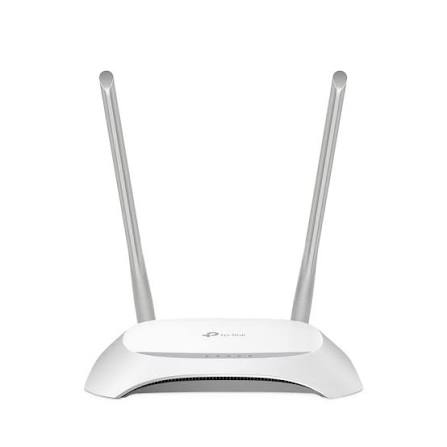
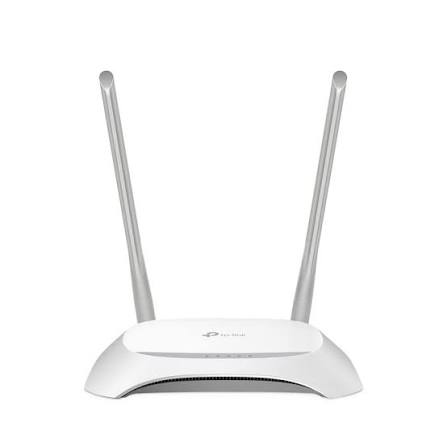
A single-band router sends Wi-Fi on one frequency band, 2.4 GHz. It is a simple, affordable choice with good range and strong signal through walls.
| Options | Single band (2.4 GHz) | Dual band (2.4 + 5 GHz) |
| Range | Longer, passes through walls better | 5 GHz is shorter range |
| Speed | Lower | Higher on 5 GHz |
| Crowding | More interference | 5 GHz is usually quieter |
| Price | Lower | Higher |
Right for you if: you browse, message, make video calls and stream on a few devices. Think again if: many people stream HD video or game at once, or your internet plan is faster than about 100 Mbps.
Set up in 5 steps
1. Connect the hardware
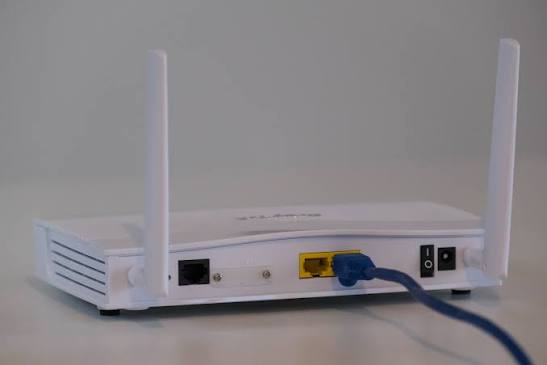
Plug a network cable from your modem or ONT into the router's blue WAN port. Switch the modem on, wait two minutes, then power up the router.
2. Log in to the router
Connect to the router, open a browser and type the login address printed on the router's label (often 192.168.1.1 or 192.168.0.1).
3. Change the admin password
Many routers ship with a simple default login. Change it first, and write the new one down.
4. Set up Wi-Fi
Choose a Wi-Fi name, select WPA2-PSK (AES) security and set a password of 12 or more characters.
5. Set up the internet
Pick the connection type your provider gave you: Dynamic IP (DHCP), PPPoE with a username and password, or Static IP. Save and check the Internet light.
What the lights mean
| Light | Normal | If something is wrong |
| Power | Solid on | Check the adapter and socket |
| Internet / WAN | Solid or blinking | Off or red means no internet from the source |
| Wi-Fi | Blinking | Off means Wi-Fi may be switched off |
| LAN 1-4 | On when a cable device is connected | Check the cable |
Pick the best Wi-Fi channel
The 2.4 GHz band is crowded. Only channels 1, 6 and 11 do not overlap. If your neighbours use channel 6, switch to 1 or 11. Use 20 MHz channel width in busy areas for a steadier connection.
Get a stronger signal
- Place the router in a central, high, open spot.
- Keep it away from microwaves, cordless phones, metal and mirrors.
- Use a cable for TVs, desktop computers and game consoles.
- Disconnect devices you are not using. On a single band, everyone shares the same airspace.
Good to know: the speed on the box (for example 300 Mbps) is the best case. Real speed is usually much lower and depends on your plan, distance and number of devices.
Keep your network secure
- Change the admin password.
- Use WPA2-PSK (AES) with a long Wi-Fi password.
- Turn off WPS PIN and remote management.
- Use the guest network for visitors.
- Update the firmware from the manufacturer's official website.
- Do not unplug the router during an update.
Quick fixes
| Problem | Try this |
| No internet | Check the WAN cable, restart the modem, then the router |
| Cannot open the admin page | Use the exact address on the label and type it in the address bar |
| Slow Wi-Fi | Move closer, change channel to 1, 6 or 11, disconnect unused devices |
| Wi-Fi keeps dropping | Move away from interference and update the firmware |
| Forgot the admin password | Factory reset (hold Reset for about 10 seconds), then set up again |
Before a factory reset: keep your provider's internet login details ready. A reset erases all settings.
Frequently asked questions
Can I use a single-band router with my phone and laptop?
Yes. Almost every Wi-Fi device supports 2.4 GHz. Only a few very new devices are 5 GHz only.
Why is my Wi-Fi slower than the speed on the box?
The box shows the best-case link speed. Real speed is lower and is also limited by your internet plan, distance, walls and the number of connected devices.
Should I hide my Wi-Fi name?
No. Hiding the name does not protect your network. Use WPA2-PSK with a strong password instead.
I already have a provider's router. Can I add mine?
Yes. Ask your provider to put their device in bridge mode, or set your router to access point mode, to avoid two routers fighting each other (double NAT).
What does a factory reset do?
It erases all settings, including your Wi-Fi name, passwords and internet login, and returns the router to the values on its label.
Need help?
Contact SB Link Network support for router setup, connection settings or any problem you cannot fix. Have your router model and the status of its lights ready.
Button: Contact support
Button: Download the full guide (PDF)


