

Cisco IP Phone 8800 Series User Guide
Everything you need to set up and use your Cisco IP Phone 8800 Series: calling basics, hold, transfer, conference, voicemail and quick troubleshooting.
Cisco IP Phone 8800 Series: Quick User Guide
Everything you need to use your office phone with confidence: making calls, handling several calls at once, checking voicemail, and setting up your phone the way you like it.
Button: Download the full 15-page guide (PDF)
Which phone do you have?
The 8800 Series phones look and work almost the same. They differ in connectivity, expansion and video.
| Feature | 8841 | 8851 | 8861 | 8865 |
| Bluetooth | No | Yes | Yes | Yes |
| Wi-Fi | No | No | Yes | Yes |
| USB ports | 0 | 1 | 2 | 2 |
| Video camera | No | No | No | Yes |
Find your model: press Applications, then Phone information.
Know your phone in 60 seconds
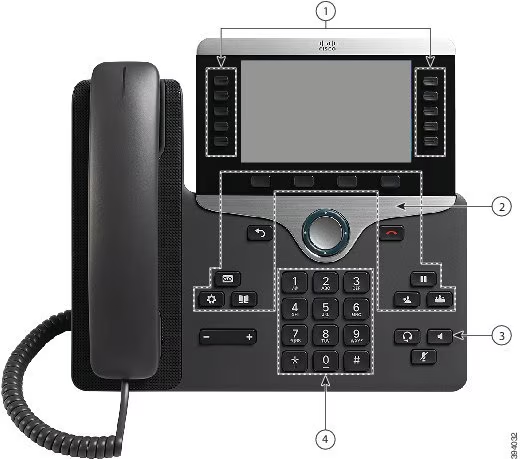
- Line buttons (left): your lines, speed dials and monitored colleagues.
- Session buttons (right): one per call. Use them to answer, resume or switch calls.
- Softkeys (below the screen): change with what you are doing. Press More for extra options.
- Navigation ring and Select: scroll and confirm.
- Hold, Transfer, Conference, Mute, Headset, Speaker: the call controls.
- Messages: one touch to your voicemail.
What the lights mean
| Light | Meaning |
| Green, steady | Ready, or on an active call |
| Green, flashing | Call on hold |
| Amber, flashing | Registering, or a call is returning |
| Red, steady | Line in use |
| Red, flashing | Incoming call |
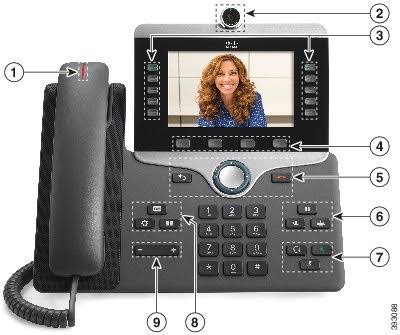
| Solid red light on the handset | You have new voicemail |
Everyday tasks, step by step
Make a call
Lift the handset (or press Speaker or Headset), dial the number and press Call. For an international number, hold the star key for one second to type "+".
Answer, hold and switch
Press the flashing red session button to answer. Press Hold to pause a call and Resume to return. To switch between two calls, press the other call's line button.
Transfer a call
- Press Transfer. The caller hears music.
- Dial the person.
- Tell them who is calling.
- Press Transfer again.
For a quick hand-off with no announcement, press More, then Blind, dial, and hang up.
Start a conference call
During a call, press Conference, dial the next person, then press Conference again to bring everyone together.
Check voicemail
Press Messages and follow the prompts. A solid red handset light and a number next to your line mean you have new messages.
Stop interruptions
Turn on Do Not Disturb from Applications, then User preferences, then Call preferences. Use Forward All to send every call to another number.
Make the phone work harder for you
- Speed dial: program a line key by holding it for 2 seconds.
- Call park: hold a call and pick it up from any phone.
- Call pickup: answer a colleague's ringing phone.
- Contacts: search the company directory or save your own address book.
- Call history: the last 150 or more calls, with filters for missed, received and placed.
- Self-care portal: manage forwarding, speed dials and contacts from a web page.
On the 8851, 8861 and 8865
- Bluetooth: pair a headset or your mobile phone. Pair up to three devices.
- Intelligent Proximity: answer or place mobile calls from your desk phone.
- USB: connect headsets or charge your phone.
- Video (8865 only): open the camera ring to share video, check yourself with Self view, and close the shutter after every call.
Quick fixes
| Problem | Try this |
| Caller cannot hear me | Check Mute is off and the right audio device is selected |
| Line light stays amber | Wait a minute, restart the phone, then contact support |
| Phone does not ring | Check Do Not Disturb and call forwarding |
| Red light but no voicemail | Open Messages, then ask support to reset the indicator |
| Video is choppy (8865) | Lower the video bandwidth setting |
Frequently asked questions
Why does my phone look different from the guide?
Your administrator chooses which buttons and features are turned on, so layouts can differ.
Do the star codes work on every system?
No. Codes such as *72 for forwarding depends on your phone service provider. Ask your support team to confirm the ones you can use.
How do I clean the phone?
Use a soft, dry cloth only. Liquids and sprays can damage it.
Can I call emergency services from the phone?
Yes. Dial the emergency number normally. Your location and callback number are sent, so make sure your administrator has set your location correctly.
What do I do if I change my voicemail PIN?
Change the default PIN the first time you log in, so nobody else can listen to your messages.
Need help?
Contact SB Link Network support for setup, new features or any problem you cannot fix. Have your phone model and MAC address ready (Applications, then Phone information).
Button: Contact support
Button: Download the full guide (PDF)


